

The three kinds of notice
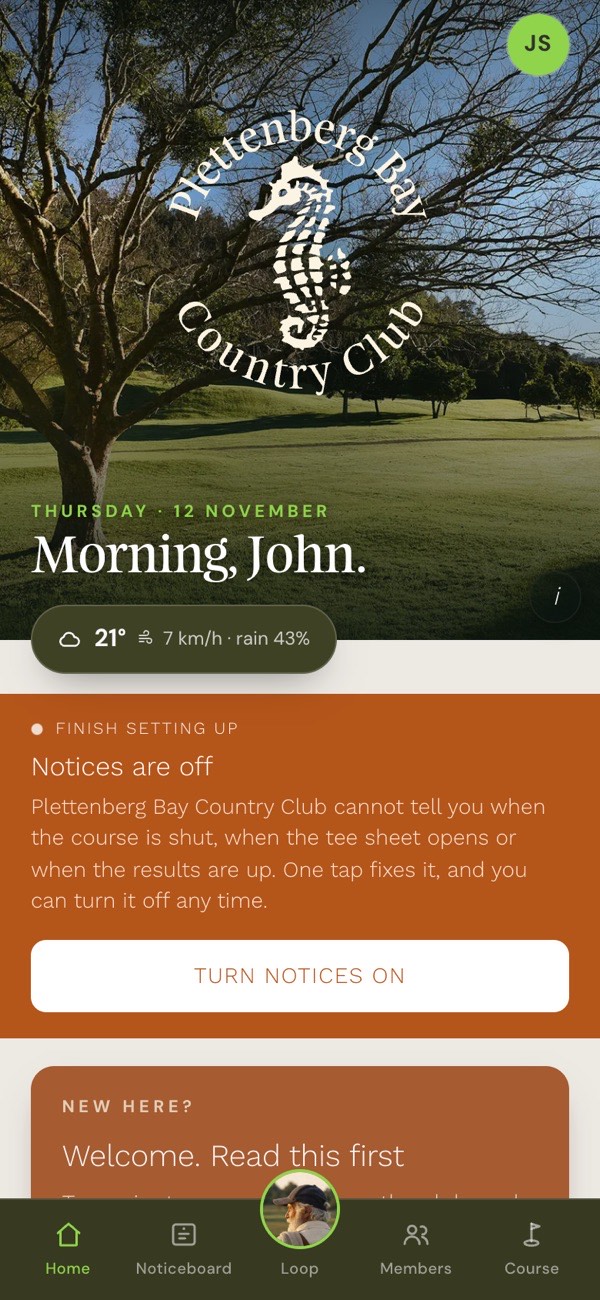
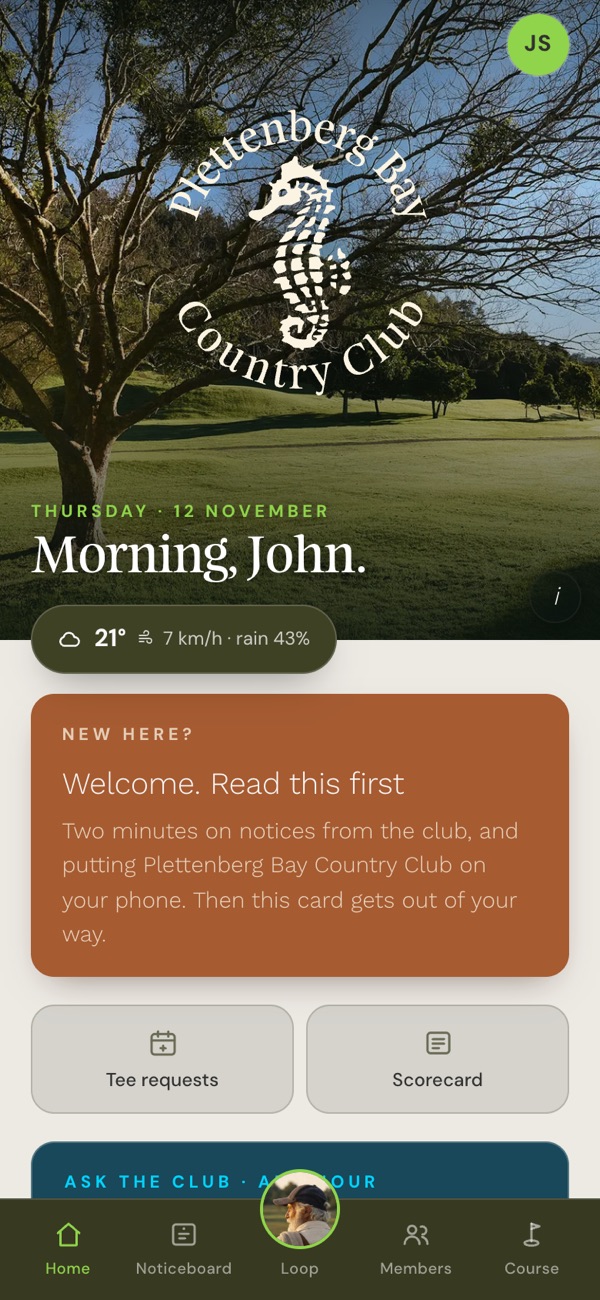
Notices are short messages that land on your lock screen. There are three kinds, and you can switch any of them off in your profile:
- Alerts. Course closures and urgent notices: the rare, need-to-know ones.
- My golf. Your tee requests and your results: only ever about you.
- Club news. News and what's on when the club gives it a buzz.
To switch them on, see Notices in the walkthrough above.
Signed in on a computer
A computer is fine for a look around, but it cannot take notices and it cannot go on your home screen. Open your personal link on your phone and start from Signing in.
The Noticeboard
Everything the club puts up: What's on, News and Results, one swipe apart. You can say you're coming to an event straight from its card. A longer item shows its opening on the card: tap Read more for the whole of it.
Open the app → Noticeboard, the second tab.
Your card
Keep your score hole by hole on the club's own card. Choose your tee, slide to start, then enter each hole with − and +, or by voice. It stays on your phone: a memory of the round.
Open the app → Scorecard, on the home screen. Or Course → start a round.
Voice scoring
On the hole card, press and hold the green mic beside Hold to talk, say the scores, and let go. The first time, your phone may ask to use the microphone: tap Allow.
Say it however comes naturally:
"Peter five, John four, and myself five."
- With names. "Myself", "me" and "I" mean you, the person holding the phone.
- Without names. "Four, three, four, five" goes down the card in order.
- In golf words. Par, birdie, bogey, double: counted from the hole's par on the card. Never net.
- All together. "All fives."
The card shows what it heard. Anyone it didn't hear is left for you, never guessed. Check it, then slide to enter the hole, as you always do.
No mic on your card? Your phone doesn't offer it. The − and + work as ever.
Open the app → Scorecard → start your round → the hole card.
The course, hole by hole
The scorecard, the ratings from every tee, and each hole with a caddie's note on how to play it.
Open the app → Course, the last tab.
Loop
The club's caddie, in the middle of the bar at the bottom of the app. Fifty years on the bag, every page of the rule book. Tap him for his rooms.
Open the app → Loop.
Get a ruling
Standing over the ball and not sure? Tell Loop what happened, by typing, by voice or with a photo, and he gives you the ruling and the rule it comes from. He is a guide, not the referee: the Committee always prevails.
Open the app → Rulings, on the home screen.
Ask the club
Ask about the course, the clubhouse, fees or guests, at any hour. If it can't answer, it passes your question to the office, and the answer comes back to you.
Open the app → the Ask the club band on the home screen.
Tee requests
Pick a day, roughly when, and how many of you. The club confirms, and you hear back as a notice. It is a request to the club, not the live tee sheet.
Open the app → Tee requests, on the home screen.
Results
The sheet after every competition.
Open the app → Noticeboard → Results.
Growing the game
Golf, explained kindly: the things nobody teaches you and everybody wonders about. Six short reads from your caddie.
Open the app → Loop → Growing the game.
The suggestion box
Tell the club what works and what doesn't. It goes straight to the office.
Open the app → Members, at the bottom of the page.
Still stuck?
Ring the office on 044 533 2132 or email info@plettcountryclub.co.za. Or reply to any of the app's emails, or write to looper@send.plettcountryclub.co.za, and say what happened.
The app is run for the club by Looper. Member privacy notice.